
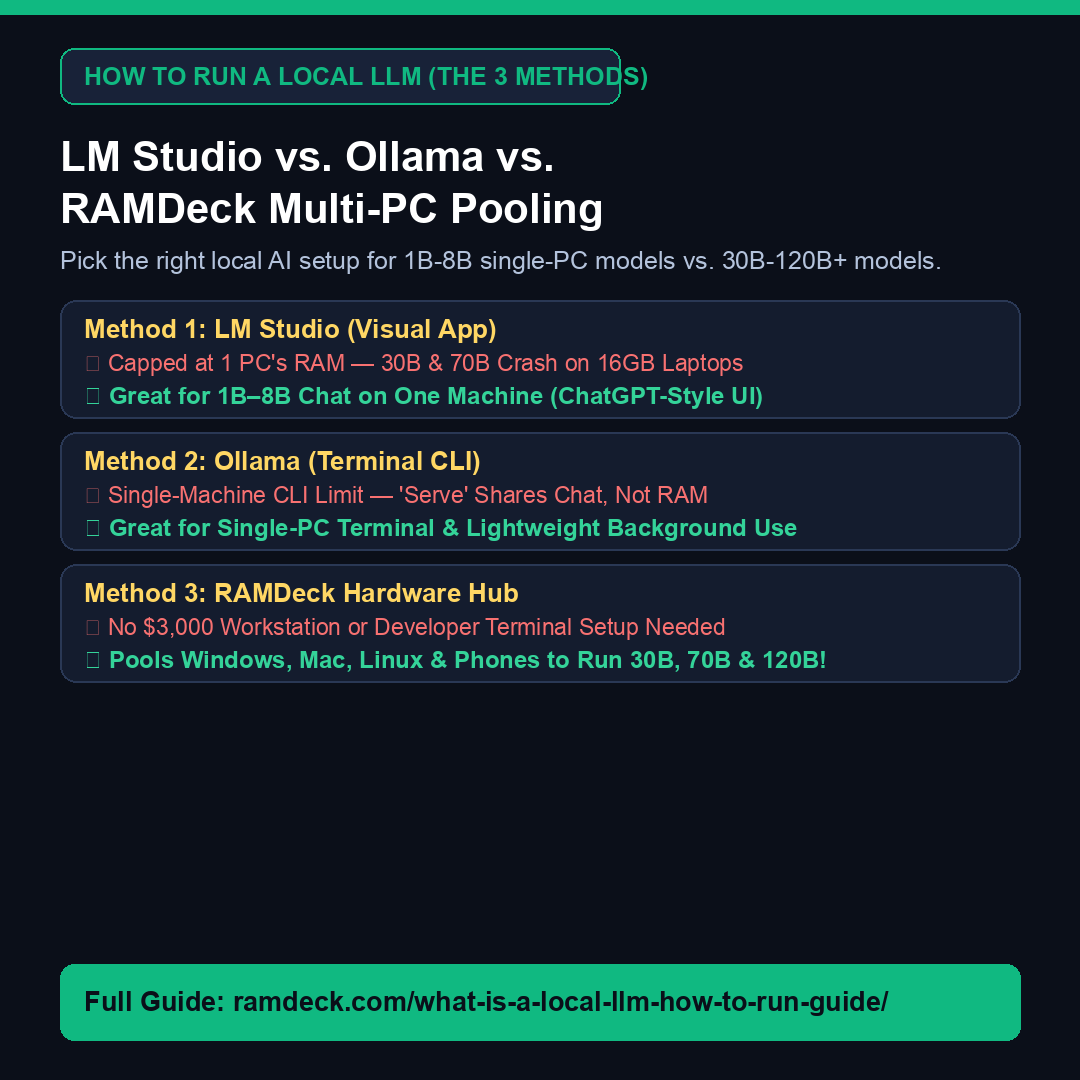
Direct Answer: To run a local LLM on one computer, beginners typically start with Method 1 (LM Studio) for a ChatGPT-like visual app or Method 2 (Ollama) for terminal commands—both great for 1B to 8B models (~2–8 GB RAM). However, the moment you try to load a smarter 30B (~18–22 GB) or 70B (~40–48 GB) model on a 16 GB laptop, single-PC apps hit a hard memory wall. That is where Method 3 (RAMDeck Multi-Device Memory Pooling) comes in: plugging the $199 RAMDeck Hardware Hub into your home router lets you combine your laptop, spare desktop, Mac, iPhone (~3.2 GB active unified memory on iPhone 16), and Android phone into one 48 GB–96 GB+ local AI brain in 5 minutes with zero coding.
Why NVMe SSD Virtual Memory Can’t Rescue a 70B Model
When a 42 GB 70B model overflows a 16 GB computer, letting the operating system swap weights onto an NVMe SSD slows generation below 0.1 tokens per second because every single word requires re-reading tens of gigabytes from flash storage. Pooling real physical RAM across household devices via RAMDeck keeps weights resident in fast memory—streaming Qwen 30B MoE at 28.0 tokens/sec across an M3 MacBook + two iPhones over standard Wi-Fi, and 38–39 tokens/sec across a Mini PC + Mac mini!
Read the full guide: What Is a Local LLM & How to Run One (Method 1, Method 2 & Method 3), or grab the free 10-chapter book at ramdeck.com/book.
— The TradeMAV Team
Trademark Notice: TradeMAV™ is a trademark of TradeMAV LLC. All third-party product names, including LM Studio, Ollama, vLLM, and llama.cpp, are trademarks or project names of their respective owners, which are not affiliated with, sponsoring, or endorsing RAMDeck or TradeMAV LLC.



Leave a Reply